Mediaboard - Aweswome Features

Mediaboard – Awesome Features

By

Awesome Features

The full power of Mediaboard PRO

Free

The free version is not available anymore.

 Pro 

Free use of the PRO Version 2.7 for everyone.
yesMedia Files, Documents, Links, Streaming Media and Portable Foldersyes
Playback of all common audio and video formats. Viewing of PDF documents and all common image formats. Any file type can be added as a card attachment.
yesCustomisable Board Stylesyes
Wide range of design, layout and background options to colour and size the board elements. Custom designs for each category.
yesCard Optionsyes
Customisable card appearance for optimal viewing on screen. (Includes dimension, corners, transparency and spacing.)
yesAuto Preview Imagesyes
Just paste a YouTube or Vimeo link into a card and Mediaboard will automatically grab the video poster. The quickest way to build a sharable video playlist.
yesAutosize Category Namesyes
Automatic font sizing of category names to fit into labels or manual adjustments to create cool effects.
3Categories per BoardUnlimited
The FREE version has a maximum of 3 categories per board. The PRO version can have unlimited categories.
50Cards per Category150
The FREE version holds up to 50 cards per category, in total 150 cards per board. The PRO version holds up to 150 cards per category.
noBubble Layeryes
Use speech bubbles where you can input text to explain all parts of your board and presentation to be saved as a screenshot.
yesEasy Shareyes
Easy replication of a board with a few clicks to a cloud-synched folder, removable storage device or any other folder directly from within Mediaboard. No need to use Windows Explorer to copy the board.
noPassword Protectionyes
Prevention of changes to board settings, style, content and card order by locking them with a password.
noCloud Capableyes
Mediaboard can be used on a shared cloud drive on different computers at the same time. The board content (Categories and Cards) is the same everywhere although it is possible to have different board designs for every computer.
noMaster and Client Boardsyes
When Mediaboard is shared over the cloud or a network then the original board is the master board and all other active copies or instances are client boards. As the master board owner you maintain control over the client boards.
yesCard Formatting Effectsyes
Basic card codes can be applied to a card or a group of cards to create nice font, colour and transparency effects. (See effects list).
noCard Animation Effectsyes
Advanced card codes can be applied to a card or a group of cards to achieve various effects including custom fonts, touch and background sound, random card fade and pulse and date locked cards. (See effects list).
yesImaging Moduleyes
Super easy pasting of images from the clipboard as card image with re-positioning, automatic cropping and resizing to achieve best native display.
yesPop-Up Imagesyes
Images can be opened in a preview pop-up which can be dragged, enlarged and printed. Multiple pop ups and stacking possible on one display.
yesPop-Up Textyes
A text box that opens like a pop-up image and can contain additional information about a card. The pop-up text can be formatted as heavy, script, big and small.
yesBackground Image Repositionyes
Vertical position adjustment of background image, which is also automatically resized for optimal appearance. Important for portrait background images.
noBackground Videoyes
Video can be used as animated background. (The system must have the necessary video codec installed.)
yesSort Modeyes
Sorting of categories and cards by Drag & Drop. Moving of cards into other categories.
yesGrid Modeyes
The default table-like display in various card sizes. Applies to both card type Classic and Poster.
noSpread Modeyes
Individual positioning of cards across the display for hotspotting of specific areas. Applies to both card type Classic and Poster.
yesSearch Modeyes
Powerful cross-board search functionality, by card title, description, as well as file type, url and card code. Easily find and edit cards directly while in search mode.
noKiosk Modeyes
For public access, showrooms, exhibitions and events. The board is protected against changing, minimising, or exiting.
noVideo and TV Streamingyes
Streaming and playing videos, music and TV channels directly from the internet and the cloud. Play YouTube without ads. This option uses external players like Media Player Classic, VLC Player or SM Player.
yesKeyboard Shortcutsyes
Quick working and navigation around the board using keystrokes.
DOWNLOAD

We offer Mediaboard HD Touch PRO 2.7 at no cost (private and educational use) due to the development of the new 3.0 release in spring 2021. Get your copy here!

0.00EURO0.00 €

Free

Pro

Mediaboard - Card Effects

Mediaboard – Card Effects

By

Card Effects

Mediaboard Card Animation and Behaviour

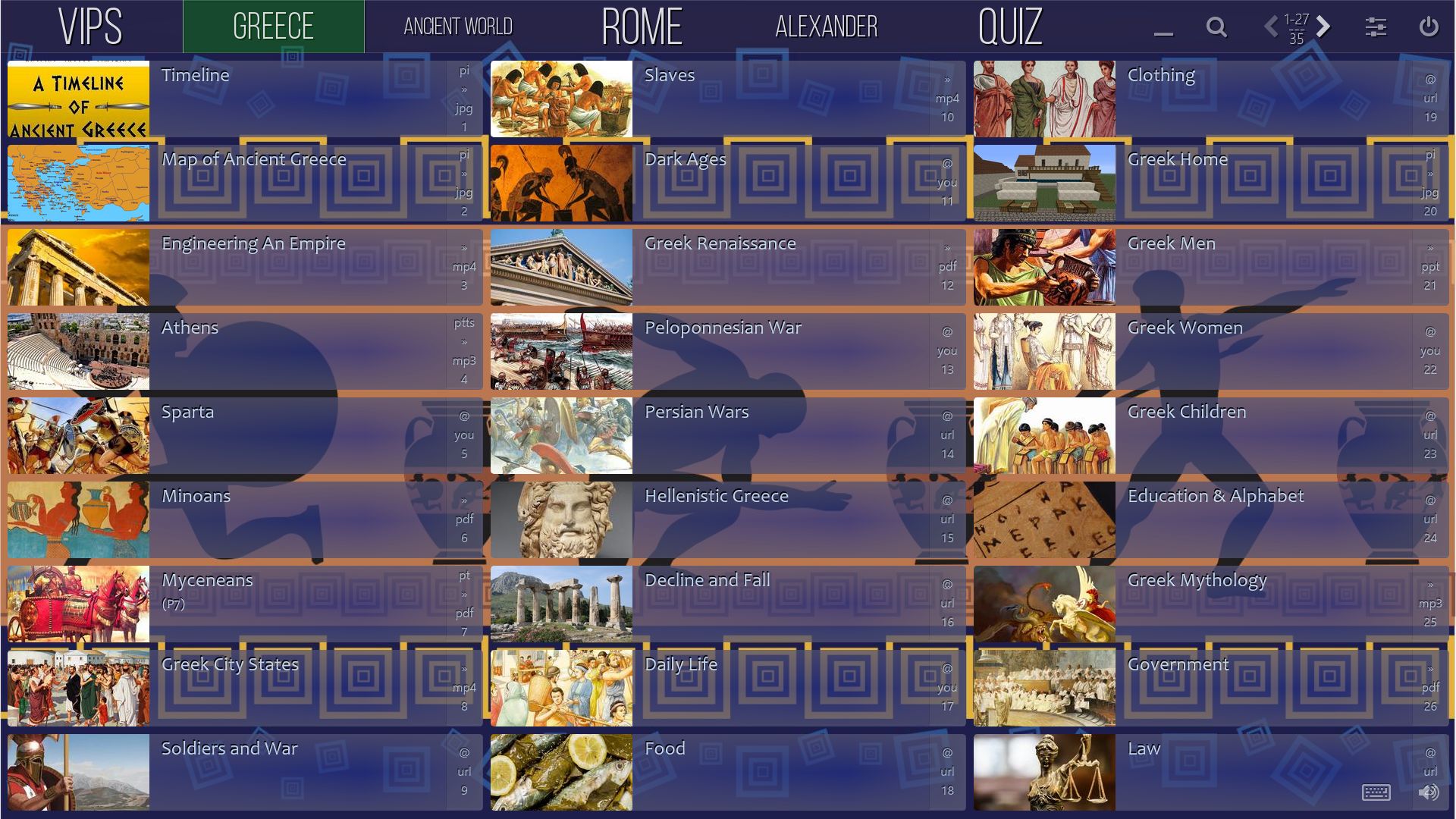
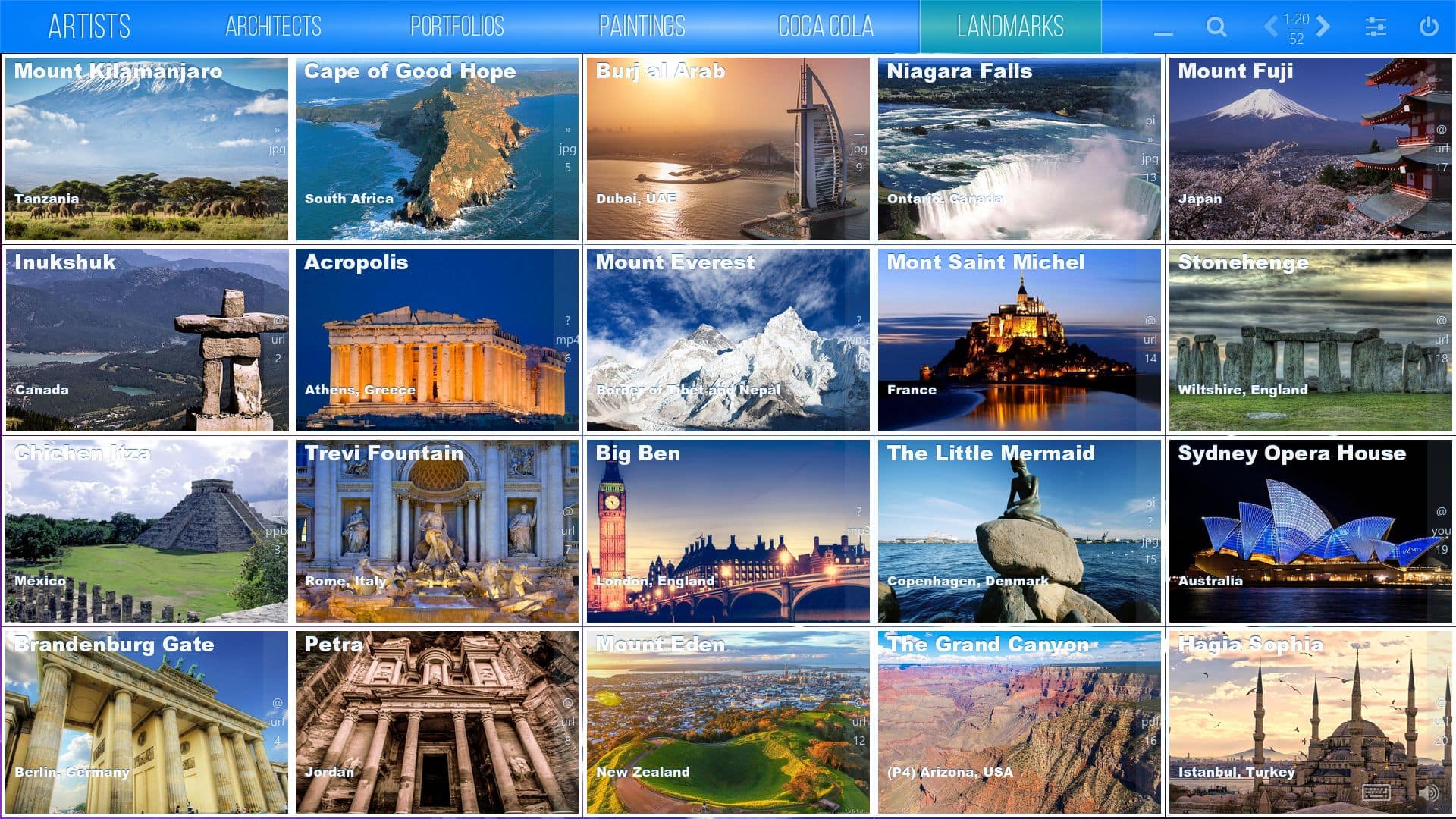
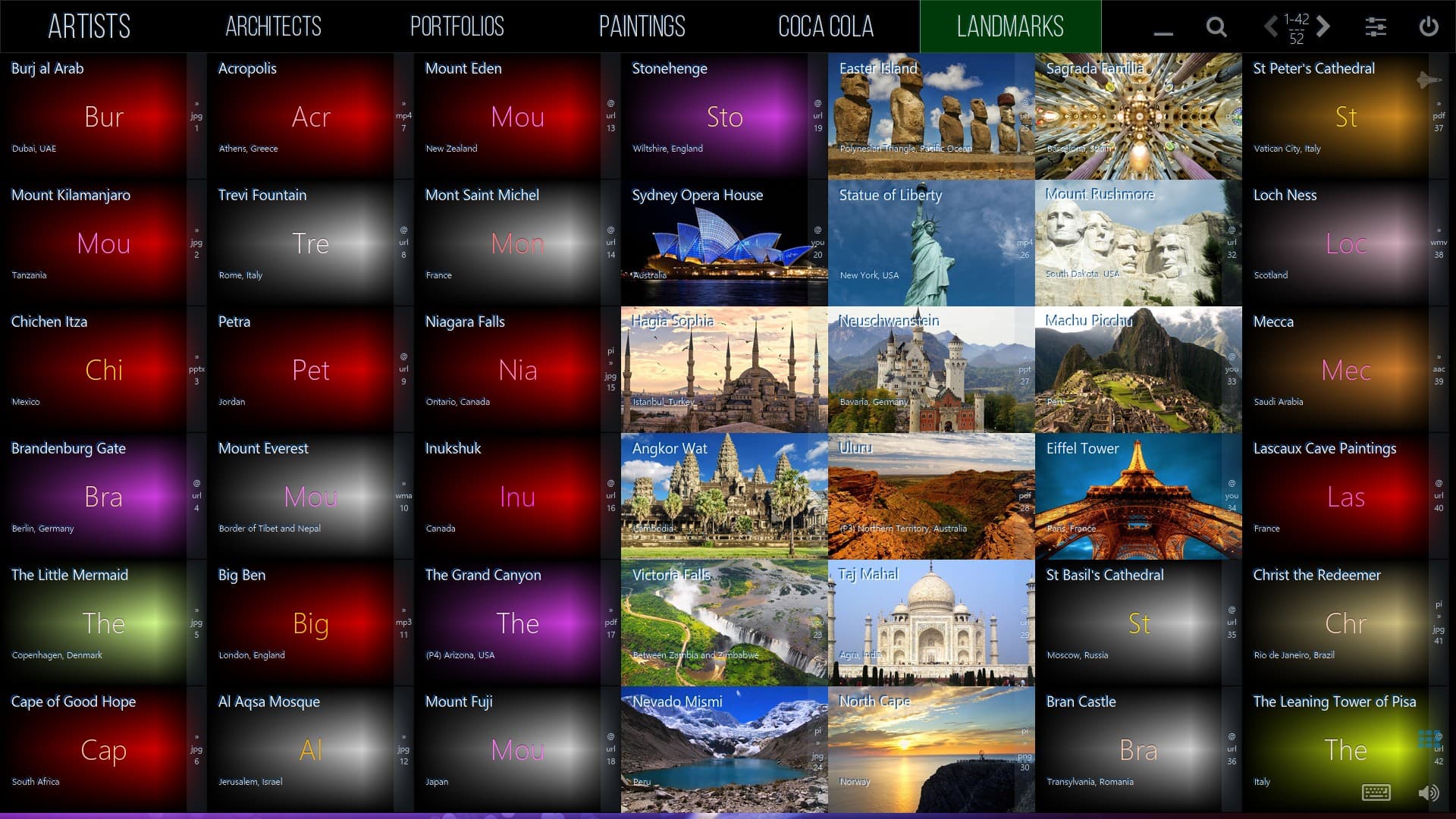
Card effects and animations are very useful features to bring attention to your board or to lend your presentation even more visual impact. You can apply effects such as shuffle, fade in/out, pulse, touch sound, or background sound and much more to a board using card codes.

Code

Card Effect

 Available 

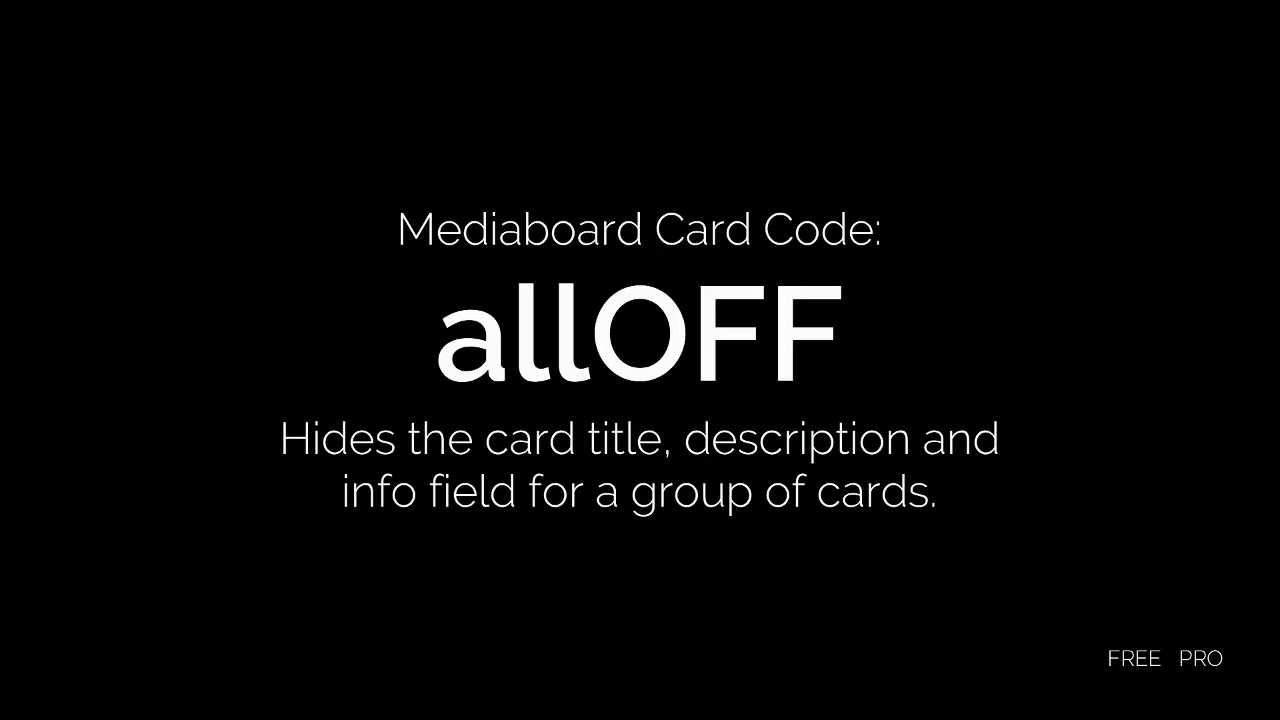
allOFFHide Everything
#video:/wp-content/uploads/2018/02/Mediaboard_Card-Code_allOFF_ENGLISH_720.mp4
FREE + PRO
Hides the card title, description and info field for a group of cards.
allONStops allOFF FREE + PRO
From this card forward the card title, description and info field reappear.
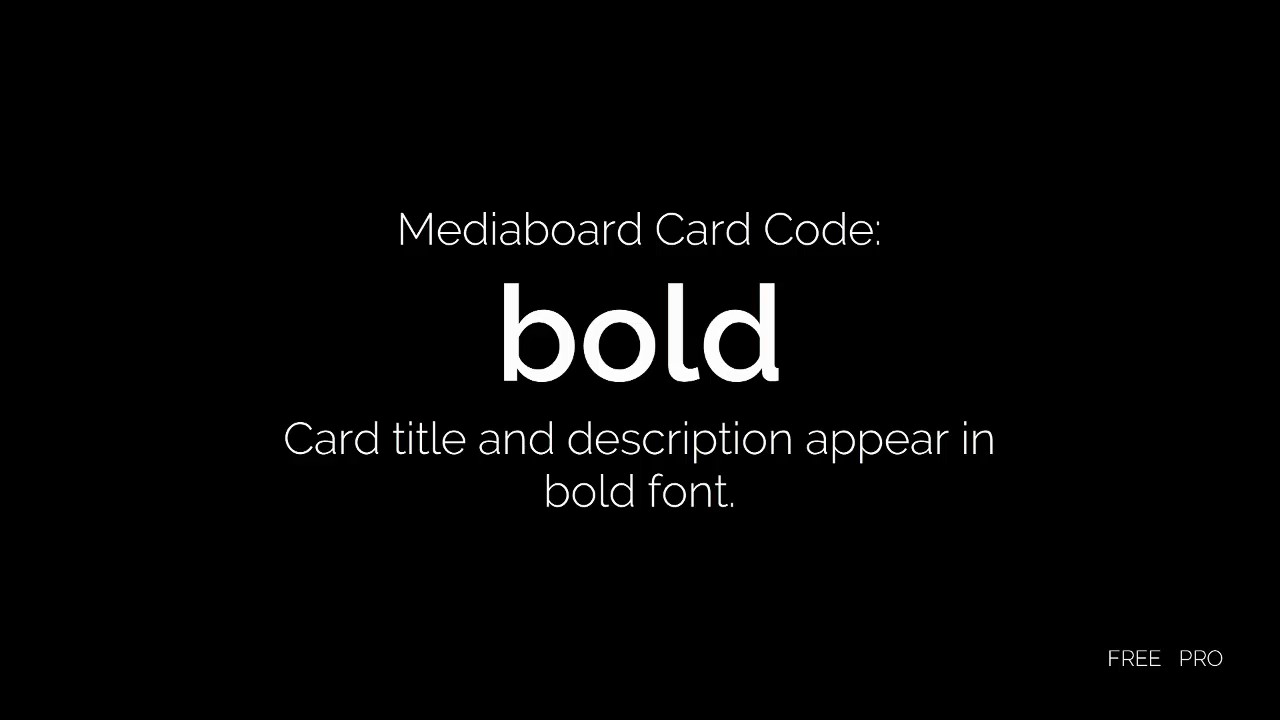
bold
Bold Font
#video:/wp-content/uploads/2018/02/Mediaboard_Card-Code_bold_ENGLISH_720.mp4
FREE + PRO
Card titles and description appear in bold font.
boldOFFStops boldFREE + PRO
From this card forward the standard font weight applies for the title and description.
bsoundBackground Sound*PRO
To play a background sound for a category infinitely at 100% board volume. (footnote 1)
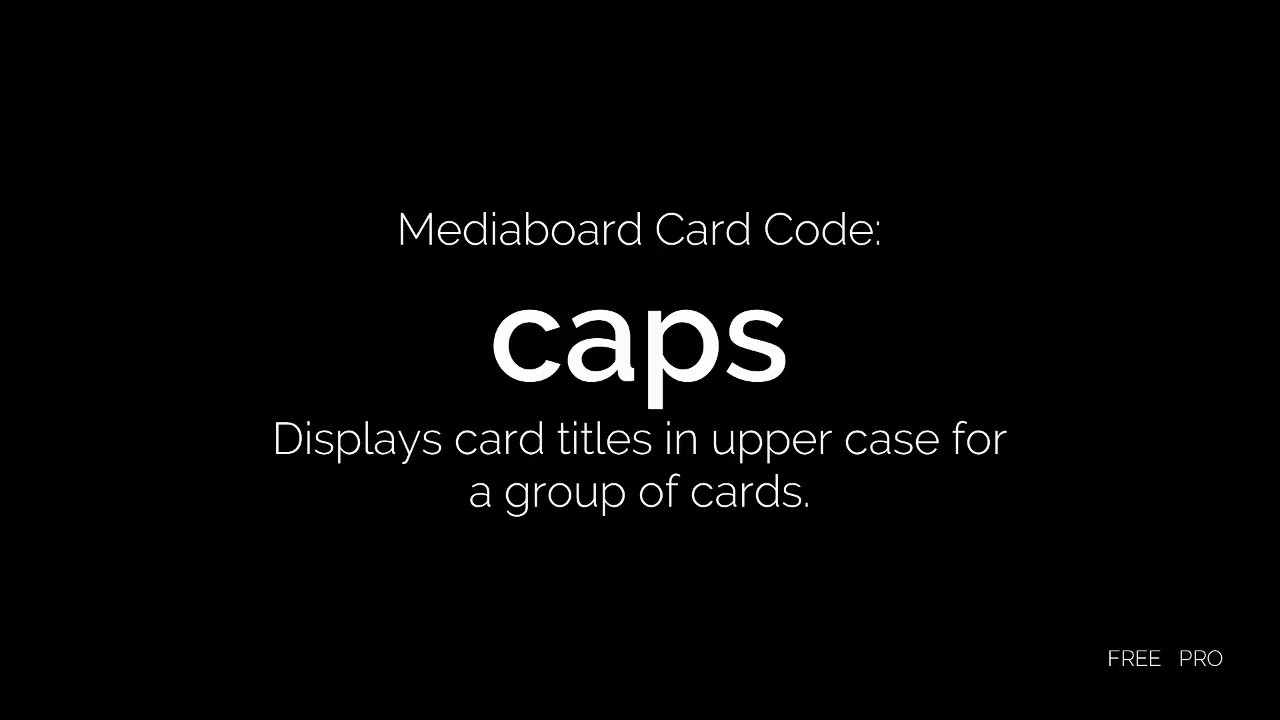
capsCapitalise Card Titles
#video:/wp-content/uploads/2018/02/Mediaboard_Card-Code_caps_ENGLISH_720.mp4
FREE + PRO
Displays card titles in the upper case for a group of cards.
capsOFF
Stops capsFREE + PRO
Front this card forward upper case is removed from the card titles.
cfontCustom Font Single*PRO
Applies a custom font for a single card. (footnote 2 and 3)
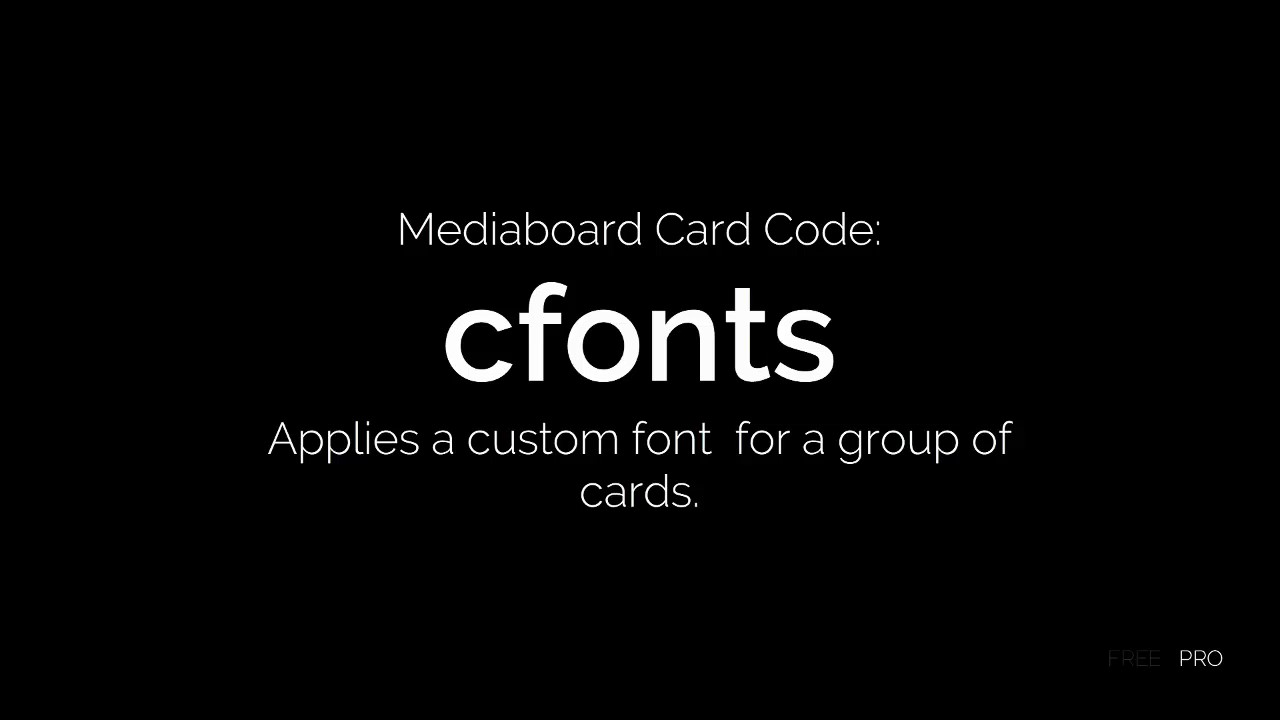
cfontsCustom Font Multi*
#video:/wp-content/uploads/2018/02/Mediaboard_Card-Code_cfonts_ENGLISH_720.mp4
PRO
Applies a custom font for a group of cards. (footnote 2 and 3)
cfontsOFFStops cfontsPRO
From this card forward, custom font is no longer applied and the default font is displayed.
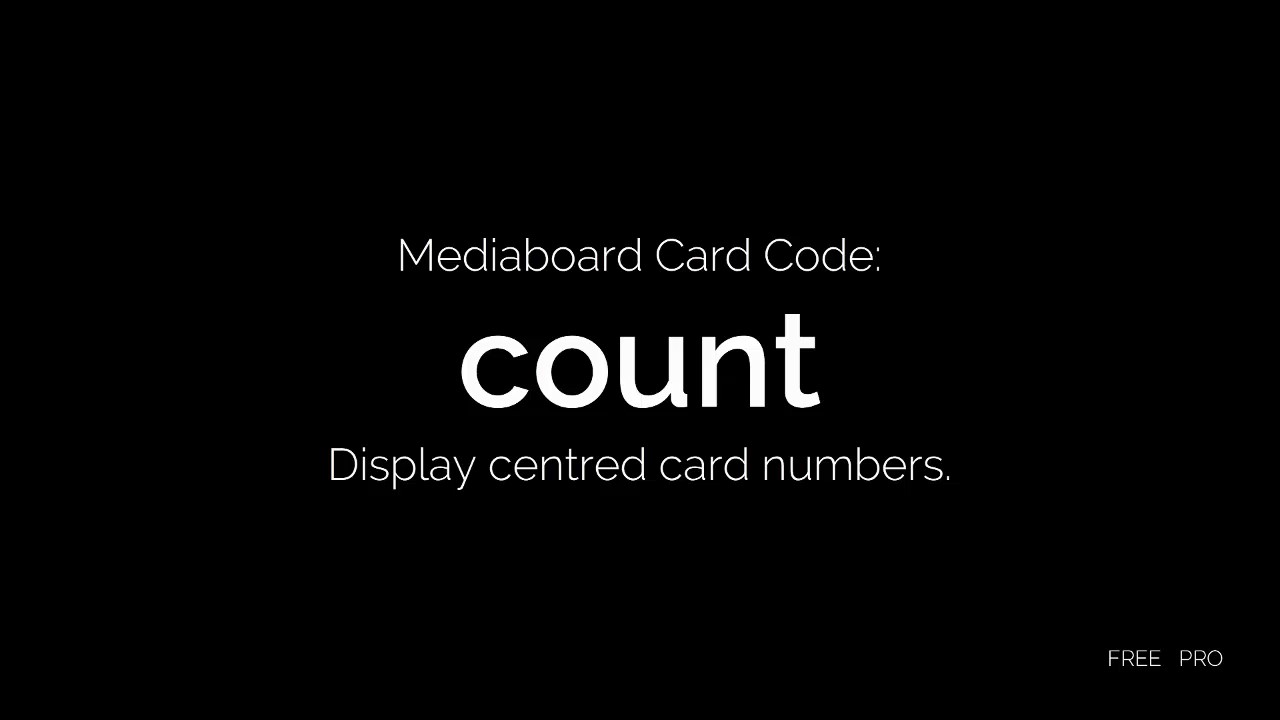
countShow Card Numbers*
#video:/wp-content/uploads/2018/02/Mediaboard_Card-Code_count_ENGLISH_720.mp4
FREE + PRO
Cards display with a large centred number (like a calendar) instead of the card initials. (footnote 4)
countOFFStops countFREE + PRO
From this card forward showing the card count is disabled.
cropCrop Preview Image
Single
FREE + PRO
Trims the preview image for a single card at the edges with the specified value in pixels.
cropsCrop Preview Image
Multi
FREE + PRO
Trims the preview image for a group of cards at the edges with the specified value in pixels.
cropsOFFStops cropsFREE + PRO
From this card forward, the preview images appear in their normal size.
ctrlYESMediaboard Controller On*FREE + PRO
Activates the Mediaboard controller for a single card. (footnote 5)
ctrlNOMediaboard Controller Off*FREE + PRO
Prevents starting the Mediaboard controller for this card only, if the Mediaboard controller is activated for the whole board. (footnote 5)
dateDate Locked Card
#video:/wp-content/uploads/2018/02/Mediaboard_Card-Code_datelock_ENGLISH_720.mp4
PRO
Card is locked until a specific date and can be opened from that date. (footnote 6)
fade
Fade*
#video:/wp-content/uploads/2018/02/Mediaboard_Card-Code_fade_ENGLISH_720.mp4
PRO
Creates a fade in/out effect on the card preview images. (footnote 7)
fbaudio
Fallback Audio PlayPRO
If a touch sound audio file is not played, Mediaboard tries to play the sound externally in the background.
fit
Fit Preview Image SinglePRO
Fits the preview image as optimally as possible for a single card. Recommended for Spread Mode and cards with PNG images that contain transparencies.
fitsFit Preview Image MultiPRO
Fits the preview image as optimally as possible for a group of cards. Recommended for Spread Mode and cards with PNG images that contain transparencies.
fitsOFF
Stops fitsPRO
From this card forward the preview images will be displayed in their standard size.
fsize
Custom Font Size SingleFREE + PRO
Applies custom font size for a single card.
fsizes
Custom Font Size Multi
#video:/wp-content/uploads/2018/02/Mediaboard_Card-Code_fsizes_ENGLISH_720.mp4
FREE + PRO
Applies custom font size for a group of cards.
fsizesOFFStops fsizesFREE + PRO
From this card forward custom font sizing ends.
galleryGenerate Image GalleryFREE + PRO
Generates an HTML image gallery for an image folder or images located in an assets folder. The gallery is started automatically in the standard browser and can be operated via mouse, keyboard or touch.
heavyHeavy Font
#video:/wp-content/uploads/2018/02/Mediaboard_Card-Code_heavy_ENGLISH_720.mp4
FREE + PRO
Card titles and description appear very bold.
heavyOFFStops heavyFREE + PRO
From this card forward the standard font weight applies for the title and description.
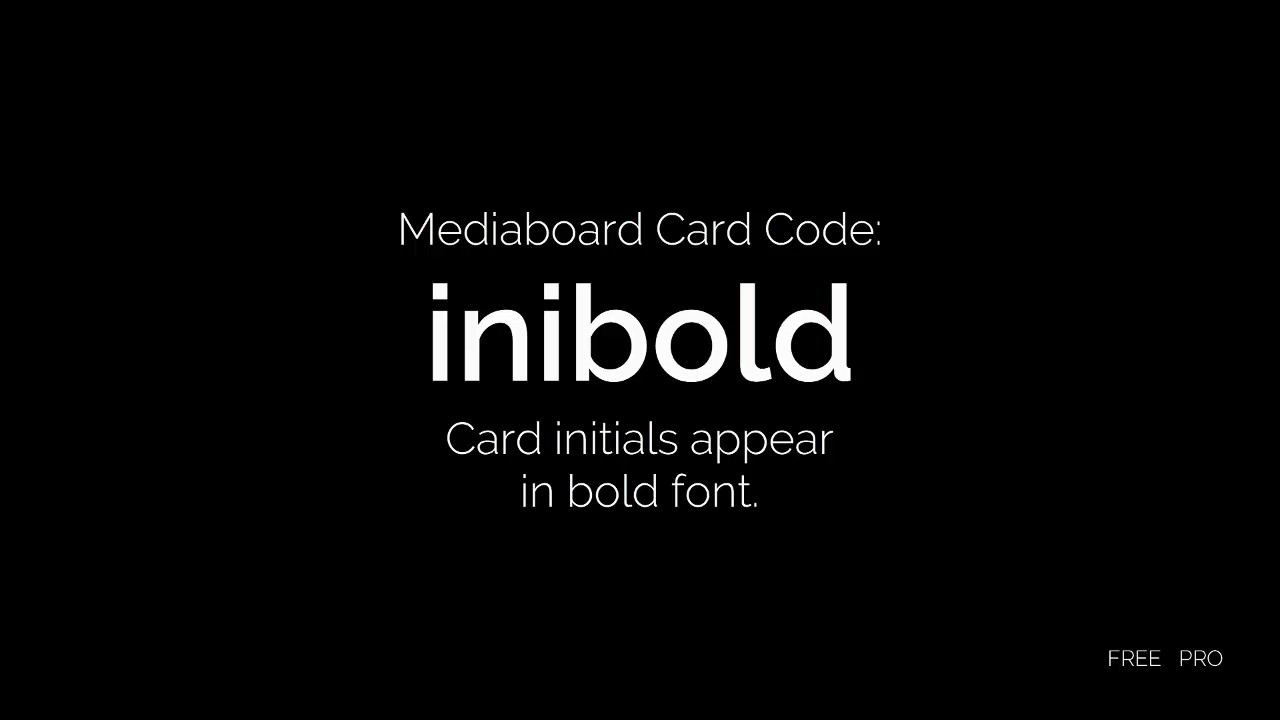
iniboldCard Initials Bold
#video:/wp-content/uploads/2018/02/Mediaboard_Card-Code_inibold_ENGLISH_720.mp4
FREE + PRO
Card initials appear in bold font
iniboldOFFStops iniboldFREE + PRO
From this card forward the standard font weight applies for the initials.
inicapsCard Initials CapitalsFREE + PRO
The card initials appear in capitals.
incapsOFFStops inicapsFREE + PRO
From this point on the card initals appear in default format.
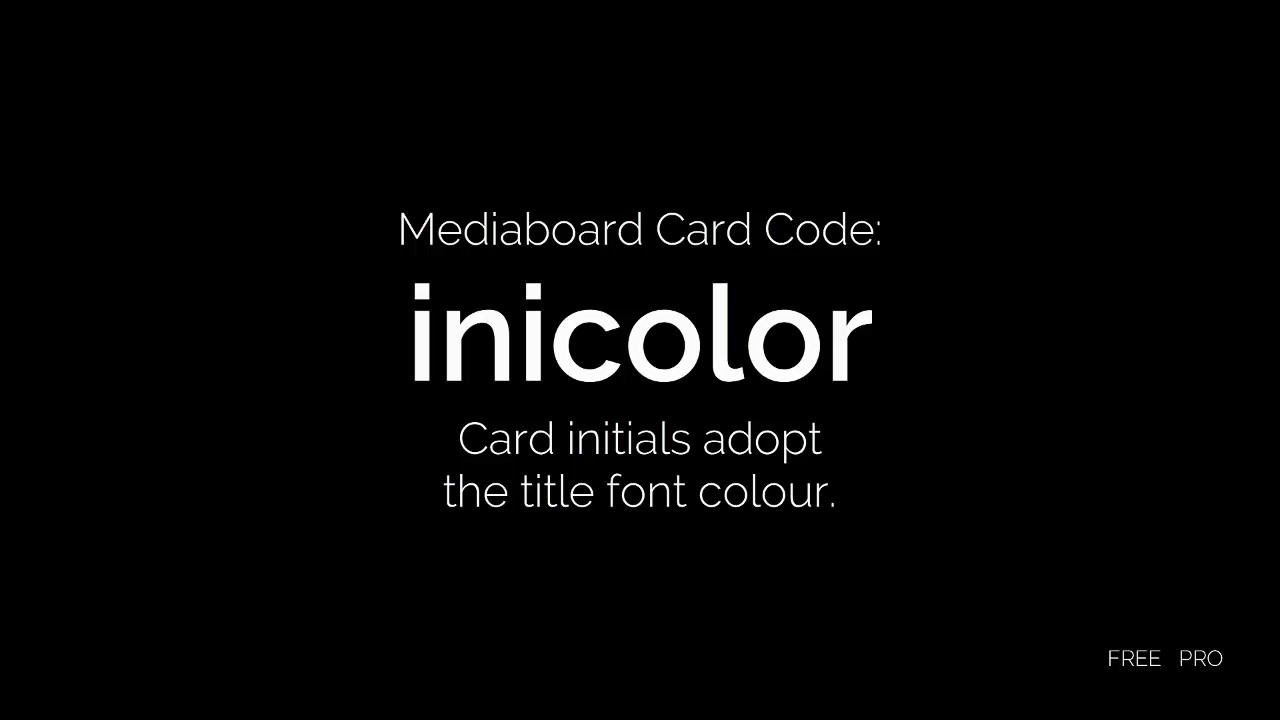
inicolorCard Initials Colour*
#video:/wp-content/uploads/2018/02/Mediaboard_Card-Code_inicolor_ENGLISH_720.mp4
FREE + PRO
The card initials adopt the same colour as the title font (footnote 7).
inicolorOFFStops inicolorFREE + PRO
From this point on card initial colours return to calculated colour.
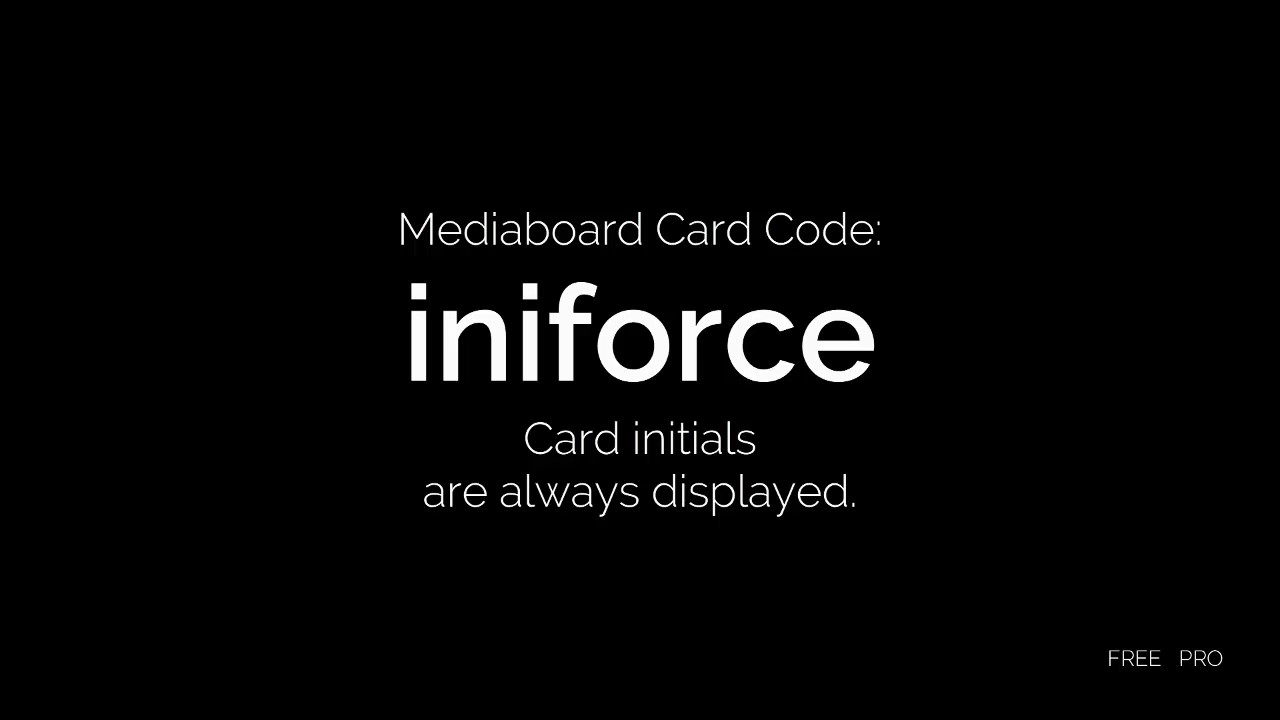
iniforceForce Initials for Classic and Poster Modes*
#video:/wp-content/uploads/2018/02/Mediaboard_Card-Code_iniforce_ENGLISH_720.mp4
FREE + PRO
Normally initials are not displayed when a preview image is set. iniforce ensures that the initials are always displayed (footnote 4).
iniforceOFF Stops iniforceFREE + PRO
From this card forward the initials are no longer forced to appear.
iniforcecForce Initials in Classic Mode only. FREE + PRO
Normally initials are not displayed when a preview image is set. iniforcec ensures that the initials are always displayed in Classic Mode.
iniforcecOFFStops iniforcecFREE + PRO
From this card forward the initials
are no longer forced to appear in Classic Mode.
iniforcepForce Initials in Poster Mode only.FREE + PRO
Normally initials are not displayed when a preview image is set. iniforcep ensures that the initials are always displayed in Poster Mode.
iniforcepOFFStops iniforcepFREE + PRO
From this card forward the initials
are no longer forced to appear in Poster Mode.
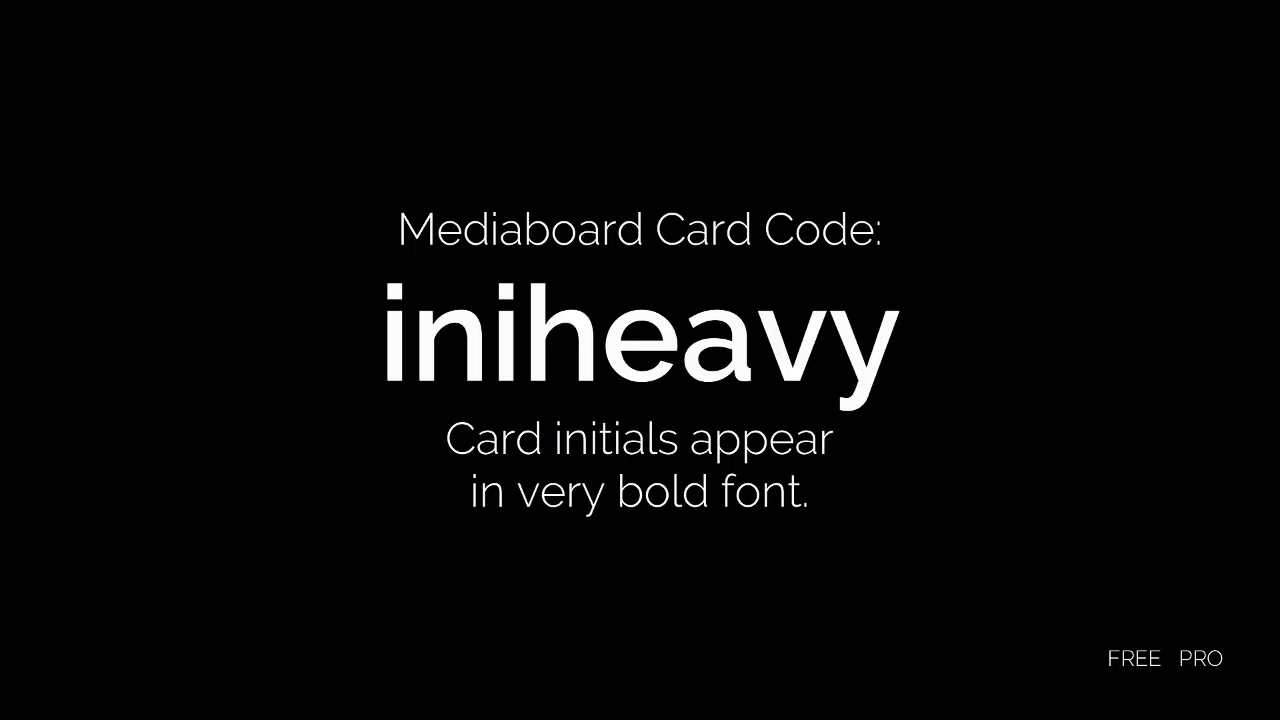
iniheavyCard Initials Heavy
#video:/wp-content/uploads/2018/02/Mediaboard_Card-Code_iniheavy_ENGLISH_720.mp4
FREE + PRO
Card Initials appear very bold.
iniheavyOFFStops iniheavyFREE + PRO
From this card forward the standard font weight applies for the initials.
italicItalic Font
#video:/wp-content/uploads/2018/02/Mediaboard_Card-Code_italic_ENGLISH_720.mp4
FREE + PRO
Card titles appear in italics.
italicOFFStops italicFREE + PRO
From this card forward the standard font type applies for the title and description.
mpcOpen URL in Media Player ClassicFREE + PRO
Any weblink will be forced to be opened with Media Player Classic to try to stream the content.
openAuto-Open CardPRO
Automatically opens a card at a specific date and time. (footnote 9)
outCard Outline Single*PRO
Draws a card outline in the given colour for a single card. (footnote 10)
outsCard Outline Multi*
#video:/wp-content/uploads/2018/02/Mediaboard_Card-Code_outs_ENGLISH_720.mp4
PRO
Draws a card outline in the given colour for a group of cards. (footnote 10)
outsOFFStops Card OutlinePRO
From this card forward no card outline is displayed.
pageOpen Specific PagePRO
Opens page of PDF at the given page. E.g. page25 opens at page 25.
popupPop-Up Image SingleFREE + PRO
Card image opens in a pop-up window, that is draggable and stackable. The image can be enlarged to full screen, opened in an external viewer, printed out and e-mailed.
popupsPop-Up Images Multi
#video:/wp-content/uploads/2018/02/Mediaboard_Card-Code_popups_ENGLISH_720.mp4
FREE + PRO
Card images open in a pop-up window, that is draggable and stackable. The imaged can be enlarged to full screen, opened in an external viewer, printed out and e-mailed.
popupsOFFStops popupsFREE + PRO
Card images open in the normal image viewer.
pulse
Pulse*
#video:/wp-content/uploads/2018/02/Mediaboard_Card-Code_pulse_ENGLISH_720.mp4
PRO
Creates a random pulse effect on the card preview images. (footnote 11)
rot
Rotate Preview ImagePRO
Rotates preview image clockwise or anticlockwise. (footnote 12)
rotsRotate Preview ImagesPRO
Rotates preview images clockwise or anticlockwise.(footnote 12)
rotsOFFStops rotsPRO
From this card forward, the preview images are displayed in the standard position.
start
stop
Start/Stop Playback Position*PRO
Play audio and video files from a given position. (footnote 13)
thumbOFFHide Preview Image SingleFREE + PRO
Hides the preview image for a single card.
thumbsOFFHide Preview Images Multi
#video:/wp-content/uploads/2018/02/Mediaboard_Card-Code_thumbsoff_ENGLISH_720.mp4
FREE + PRO
Hides the preview images for a group of cards. Images appear on mouseover.
thumbsON
Stops thumbsOFFFREE + PRO
From this card forward preview images reappear.
titleOFF
Hide Card Title SingleFREE + PRO
Hides the card title for a single card.
titlesOFFHide Card Titles Multi
#video:/wp-content/uploads/2018/02/Mediaboard_Card-Code_titlesoff_ENGLISH_720.mp4
FREE + PRO
Hides the card titles for a group of cards.
titlesONStops titlesOFFFREE + PRO
From this card forward card titles reappear.
transPreview Image Transparency*
#video:/wp-content/uploads/2018/02/Mediaboard_Card-Code_trans_ENGLISH_720.mp4
FREE + PRO
Individual transparency for preview images. Applies to card type Poster only. (footnote 14)
transOFFStops transFREE + PRO
From this card forward the original set transparency applies.
tsoundTouch Sound SingleFREE + PRO
Plays a sound file on touching a single card without opening a player. Touching the card again pauses or resumes a sound.
tsoundsTouch Sounds MultiFREE + PRO
Touch Sound for a group of cards so that you do not have to enter tsound for every card.
tsoundsOFFStops tsoundsFREE + PRO
From this card forward touch sound is turned off.
videoxlFull Size VideoPRO
A YouTube or Vimeo video opens in its maximum window size (not full screen).(footnote 15)
vlcYESVLC Player On*PRO
Activates the VLC player for a single card (footnote 16).
vlcNOVLC Player Off*PRO
Excludes a single card from using the VLC player when it is activated for the whole board (footnote 16).
xdateCard Remains Opened
#video:/wp-content/uploads/2018/02/Mediaboard_Card-Code_xdate_ENGLISH_720.mp4
PRO
Once a date locked card is opened on the given date it will remain transparent, which means opened.
Download or Print Card Codes PDF

How To Effectively Use Card Codes

Card Display and Animation Effects

To apply an effect or behavior to a card, enter appropriate card codes into the upper green entry field of the card edit box. 

Card Group Definition

A card group is a consecutive number of cards for which an effect or behavior has been assigned by a group card code. The group starts with the card where the starting card code is entered. The group ends with the card where the stopping card code is entered.

General Rules for Card Codes

  • A single card code generates the corresponding effect only for the card for which the code was entered.
  • A single card code (within the group) is always above a group card code and generates an exception to an effect applied to a card group.
  • A group card code generates the corresponding effect from the card into which the start code is entered to the card into which the stop code is entered.
  • Card codes can be combined as desired. There is no order that needs to be adhered to.
  • The effect is only visible or only generated if the card code has been entered in the specified format and is also supported by the card or file.

Card Animation Effects

E.g. fade, pulse

  • Animation effects are performed only when there are at least 3 cards in a category.
  • Animation effects are paused while in Edit Mode or Sort Mode.
  • Animation effects are paused when a background video is playing.

Card Code Examples

How to use the Hide Multiple Preview Images effect for a group of cards.

Suppose 25 cards are displayed :

  1. Card number 1 contains the group card code thumbsOFF (start).
    Starting with card 1, the preview images for the following cards 2,3 … are not displayed. This applies up to the last card No. 25 or until the stop code was found.
  2. Card number 10 contains the group card code thumbsON (stop).
    From card 10, the thumbnails for the following cards 11,12 … are displayed again. This applies until the last card No. 25 or until a start code has been found again.

How to use the Hide Single Preview Image effect within a group of cards.

Suppose you want to show two pictures inside the card group where the thumbnails are hidden (here card 1 to card 10). 

  1. Card 3 and Card 6 should show their thumbnails:
  2. Enter the code thumbON (single card code without s) in card 3 and card 6.
  3. This creates an exception to the group card code.

Footnotes

  1. bsound: You can set the number of repeats and volume by adding the values to the card code separated by a slash. E.g. bsound5/50 means to play a background sound repeated 5 times at 50% of the volume.
  2. cfontsxx:  E.g. cfontsArial or cfontsArial-Black. Spaces in font names must be replaced by a hyphen. The font must be available on the system where Mediaboard runs.
  3. If you are unsure that the custom font is available you can deliver the font using a card by attaching the font file from the Windows fonts folder, which can then be installed on the target system.
  4. countiniforce:  All card codes for initials will not make card initials automatically visible. This means when you want to apply card codes to initials you must combine them with iniforce.  e.g. count will not work as a standalone code when preview images are displayed. Use count and inforce to display initials and preview images.
  5. ctrlYES: With this card code you can exclusively activate the controller for a card, where you want to close the video or PDF quickly from the Mediaboard screen e.g. if you have a dual screen setup or on a touch screen where you do not use the mouse. By default, the Mediaboard controller (quickly exit a video or PDF on a touch screen) is not active.
    ctrlNO: The Mediaboard controller is activated for the category via the Quick Controls.
  6. datexx/xx/xx: e.g. date25/12/18, this card is locked until Christmas Day.
  7. fadex/x/x:
    • First x is the delay between the animations
    • Second x is the animation speed
    • Third x is the transparency
    • E.g. fade1/0.5/50 This will give a fade animation that has a delay of 1 second until the next card animation, the fade in is ½ second and the fade out is ½ second and the image will be faded from its original to the given transparency and back.
    • The animation effect duration must be half or less than half of the delay to give it time to execute the animation fully.
  8. inicolor: We recommend using this code whenever you have busy or mixed colours on pictures to help the initials standout more.
  9. open:If no time is specified, the card opens at 00:00 am.
  10. outx/x: E.g. out5/#ff0000 generates a card outline of 5 pixel in red. If no values ​​are specified, a 3 pixel outline is generated in white.
    outx/x/p: E.g. out5/#ff0000/p generates a card outline of 5 pixel in red for card type poster only. (If no values ​​are specified, a 3 pixel outline is generated in white).
    outx/x/c: 
    E.g. out5/#ff0000/c generates a card outline of 5 pixel in red for card type classic only. (If no values ​​are specified, a 3 pixel outline is generated in white).
  11. pulsex/x/x:
    • First x is the delay between the animations
    • Second x is the animation speed
    • Third x is the image enlargement size
    • E.g. pulse1/0.5/1.5. This will give a pulse animation that has a delay of 1 second until the next card animation, the pulse speed is half a second long, the preview image will be enlarged by 1.5 times of its original size.
    • The animation effect duration must be half or less than half of the delay to give it time to execute the animation fully.
  12. rotxx: E.g. rot10 = rotate a single preview image by 10% clockwise.
  13. startxx/xx/xx: E.g. start00/01/16 – The video starts at 1 minute and 16 seconds.
    stopxx/xx/xx: E.g. stop00/02/16 – The video is stopped at 2 minutes and 16 seconds. This corresponds to the playing time of one minute. *stopxx/xx/xx available only in connection with the VLC player.
  14. transxx: xx can be any other value between 0 (fully visible) and 100 (invisible). Applies to the card type Poster. Overrides the general card transparency settings. E.g. trans50 is equal to 50% transparency of the preview image.
  15. videoxl: YouTube may not allow playback in this view for advertising reasons.
  16. vlcYES: When the card is opened, the card attachment will be opened with the VLC player.
    vlcNO: The VLC player is activated for the category via the Quick Controls.
Mediaboard-Landmarks-Card-Effects-Video-Gallery

Mediaboard Gallery – Card Effects

By

Mediaboard Card Effects

Achieve an extra ordinary appearance for your cards

By continuing to use the site, you agree to the use of cookies. more information

The cookie settings on this website are set to "allow cookies" to give you the best browsing experience possible. If you continue to use this website without changing your cookie settings or you click "Accept" below then you are consenting to this.

Close